Creating a Datastore
Datastore Overview
Section titled “Datastore Overview”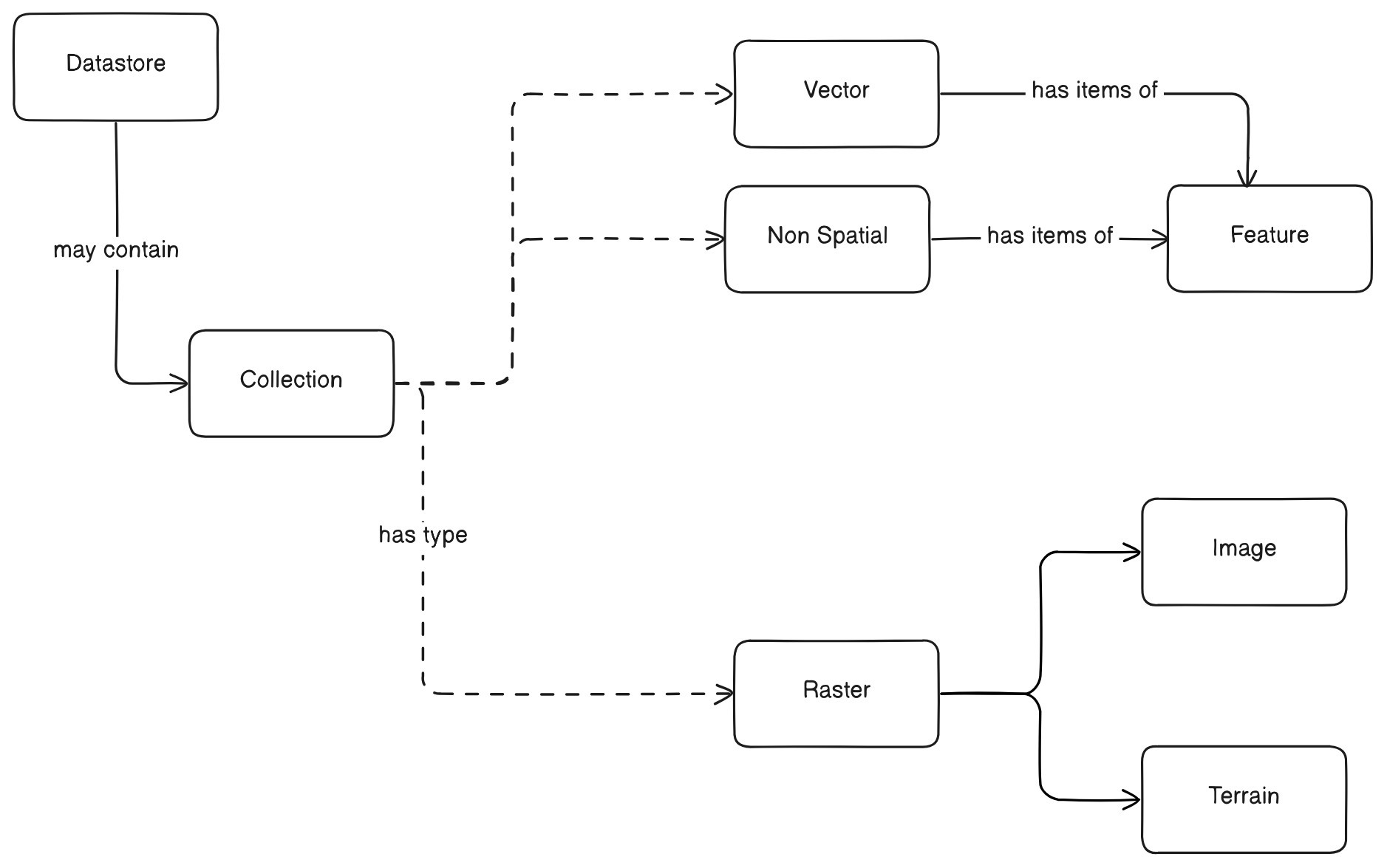
Every file is a DATASTORE.
A Datastore may contain more than 1 COLLECTION of data. A Collection may be one of three types: Vector, Raster, or Non Spatial (normal table). A single file such as a shapefile or GeoJSON will typically have only one collection named “default”.
- Vector Collections contain items that are
Features, which represent discrete geographic entities (e.g., points, lines, polygons). - Non Spatial Collections also contain items that are
Features, but these features lack spatial attributes and are more akin to records in a traditional database table. - Raster Collections can be further categorized into
Image(representing gridded data like satellite imagery or aerial photos) orTerrain(representing elevation data).
Creating a Datastore
Section titled “Creating a Datastore”To create a datastore in Kala Server, you need to follow these steps:
1. Prepare your Data
Section titled “1. Prepare your Data”Before creating a datastore, ensure your data is ready and accessible. Kala Server supports various data formats for different collection types:
- For Vector Data: Common formats include Shapefile (
.shp), GeoJSON (.geojson), KML (.kml), GML (.gml), and others. - For Raster Data: Supported formats often include GeoTIFF (
.tif,.tiff), ASCII Grid (.asc), Erdas Imagine (.img), and more. - For Non Spatial Data: Standard tabular formats like CSV (
.csv), JSON (.json), or database exports are typically used.
Make sure your data files are located in a path accessible by the Kala Server or are ready for upload.
2. Initiate Datastore Creation
Section titled “2. Initiate Datastore Creation”To create a new datastore, we need to create access token and make sure that the file is in the server, whether in filestore or in the server filesystem.
- see Authentication for details on how to create an access token.
- Filestore file can be accessed with
filestore:prefix - If the file is on the server filesystem, you can use the absolute path to the file with unix slash style.
Introspection file information
Section titled “Introspection file information”To check the file information, you can use the Kala Server’s introspection endpoint:
POST http://localhost:10211/api/data/datastore/validateAuthorization: Bearer {{auth_token}}Content-Type: application/json
{"name": "","type": "GEOTIFF","location": "/data/sat.tif"}POST http://localhost:10211/api/data/datastore/validateAuthorization: Bearer {{auth_token}}Content-Type: application/json
{ "name": "", "type": "SHP", "location": "filestore:00_00__000/shape.shp"}POST http://localhost:10211/api/data/datastore/validateAuthorization: Bearer {{auth_token}}Content-Type: application/json
{"name": "","type": "POSTGIS","location": "localhost:5432/postgis","username": "postgres","password": "postgres"}Response will contain file information, such as:
{ "status": "success", "data": { "collections": [ { "name": "example_polygon1_default", "nativeName": "example_polygon1_default", "type": "Vector", "config": { "type": "VECTOR", "columns": [ { "name": "fid", "type": "INTEGER", "nullable": false }, { "name": "id", "type": "INTEGER" }, { "name": "text", "type": "TEXT" }, { "name": "real", "type": "NUMBER" }, { "name": "boolean", "type": "BOOLEAN" }, { "name": "integer", "type": "INTEGER" }, { "name": "text_limit", "type": "TEXT" }, { "name": "date", "type": "DATE" }, { "name": "datetime", "type": "TEXT" } ], "indexColumn": { "name": "fid", "type": "INTEGER", "nullable": false }, "geometryColumn": { "name": "geom", "type": "GeometryCollection" } }, "srid": 4326, "schema": "public" }, { "name": "submarinecable_default_01977bd169b1", "nativeName": "submarinecable_default_01977bd169b1", "type": "Vector", "config": { "type": "VECTOR", "columns": [ { "name": "id", "type": "INTEGER", "nullable": false }, { "name": "line_id", "type": "TEXT" }, { "name": "name", "type": "TEXT" }, { "name": "color", "type": "TEXT" }, { "name": "feature_id", "type": "TEXT" }, { "name": "coordinates", "type": "NUMBER" } ], "indexColumn": { "name": "id", "type": "INTEGER", "nullable": false }, "geometryColumn": { "name": "geom", "type": "GeometryCollection" } }, "srid": 4326, "schema": "public" } ] }}3. Create datastore
Section titled “3. Create datastore”Send a POST request to the /api/data/datastore endpoint to create a new datastore. The request body should include the necessary details about the datastore, such as its name, type, and the data source.
- Endpoint:
POST /api/data/datastore - Request Body:
{ "name": "postgis_sample", "type": "POSTGIS", "location": "localhost:5432/postgis_sample", "username": "postgres", "password": "postgres", "collections": [ { "name": "providn", "nativeName": "province_idn", "type": "VECTOR", "srid": 4326, "geometryType": "MultiPolygon", "config": { "type": "VECTOR", "indexColumn": { "name": "id", "type": "INTEGER" }, "geometryColumn": { "name": "geom", "type": "MultiPolygon" }, "columns": [ { "name": "country", "type": "TEXT", "nullable": false }, { "name": "name_1", "alias": "country_name", "type": "TEXT", "nullable": false }, { "name": "type_1", "type": "TEXT", "nullable": false } ] } } ]}4. Accessing the Datastore
Section titled “4. Accessing the Datastore”The newly created datastore can be accessed via the Kala Server API. You can perform various operations such as querying
- Accessing datastore:
GET /api/data/datastore/{datastoreName} - Accessing collection:
GET /api/data/datastore/{datastoreName}/collections/{collectionName}